

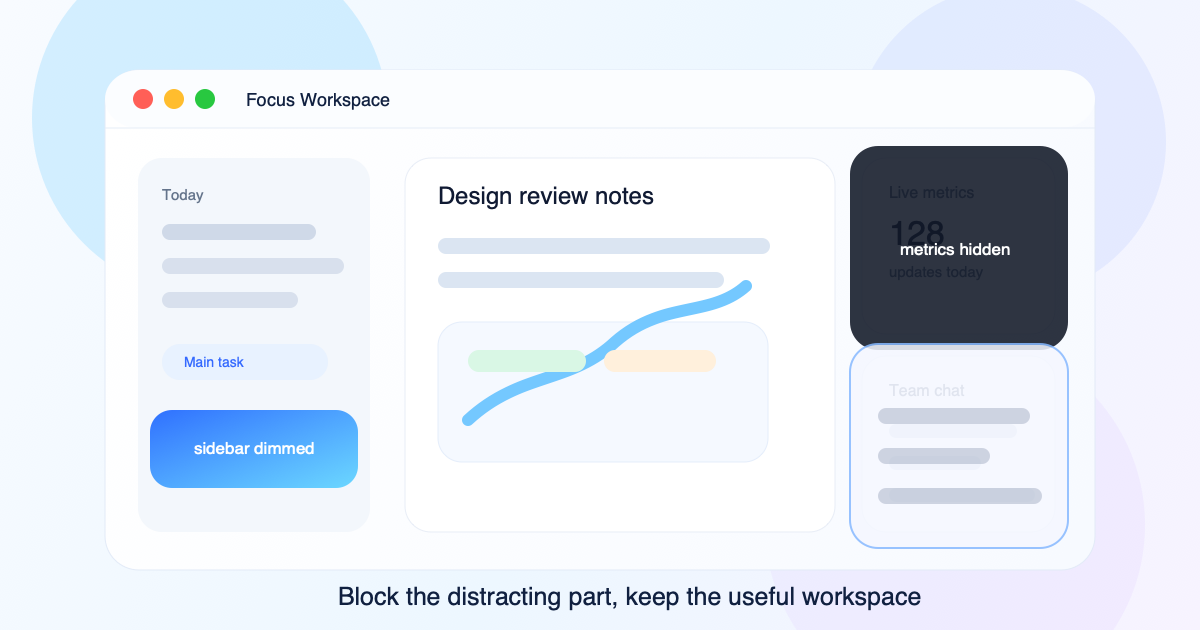
Sometimes the fastest way to focus is not closing an app. It is hiding the one part of the screen that keeps pulling your eyes away.
A chat column. A timer. A scoreboard. A metrics panel. A sidebar full of badges. A notification area. A list of numbers you keep checking even though it has nothing to do with the task in front of you.
The rest of the app may be useful. You do not want to quit it, resize it, move it to another desktop, or rebuild the layout. You just want one distracting area to stop being so loud.
This guide explains how to block distracting parts of your Mac screen with a screen overlay, and when covering, blurring, or dimming a region is better than changing the app underneath.
Quick answer: If the distraction lives inside an app you still need, a screen overlay is usually the cleanest fix. Use a solid cover when you want the area gone, blur when the layout still matters, and dimming when you only need that region to feel quieter. If the distracting area belongs to a specific window, use an app-attached mask so it follows the window instead of staying behind on the screen.
Best places to use it
The most common wins are the parts of the screen you keep checking even when you do not need to.
- Sidebars that show unread counts, labels, or project lists
- Chat columns that pull your eyes back to messages
- Metrics panels that make you refresh the same number over and over
- Timers, clocks, scoreboards, and live counters
- Notification regions, status widgets, and small panels in the corner
- Dashboards where one chart is useful and the rest is visual noise
If you searched for how to hide a sidebar on Mac, how to block a chat column, or how to dim a metrics panel, this is the same workflow: leave the app alone and cover only the noisy part.
Focus tools do not solve every visual distraction
macOS has useful focus controls. You can silence notifications, change Focus modes, hide apps, or move windows to another Space.
Those tools help when the distraction comes from outside the work.
But many distractions live inside the same app you still need to use.
A dashboard may show the chart you need and the live number you keep refreshing. A support tool may show the ticket and a noisy activity feed. A browser app may show the canvas and a sidebar full of counts. A game, stream, timer, or chat panel may sit beside the thing you are trying to finish.
Closing the app is too much. Hiding the whole window is too much. Moving it away breaks the workflow.
That is the gap a screen overlay fills: keep the useful area visible, block the part that is stealing attention.
Common ways people try to block part of the screen
Most people already have a few manual tricks. They work until they get annoying.
| Approach | Works for | Why it breaks down |
|---|---|---|
| Resize the window | Hiding a sidebar near the edge | The app layout changes and the useful area often gets worse |
| Move the window partly off screen | Quick one-off hiding | The window becomes awkward and the distraction comes back easily |
| Cover it with another app | Emergency workaround | The cover window steals focus and adds more clutter |
| Use a screen overlay | Keeping the same layout | The app stays unchanged while the noisy area becomes quiet |
Resize the window
If the distracting panel is near the edge, you can resize the window until it disappears.
The problem is that many apps change their layout when you resize them. Sidebars collapse, content wraps, columns jump, and the area you wanted to keep visible may become less useful.
You also have to put the window back later.
Move the window partly off screen
Dragging a window so the noisy part sits outside the display can work for a minute.
It is not stable. The window becomes awkward to use, and one small move brings the distraction back. If you are presenting or reviewing work with someone else in the room, it also looks messy.
Cover it with another app
A blank Notes window or small Finder window can cover an area in a pinch.
But that window can steal focus, receive clicks, show a title bar, appear in Mission Control, or move when you do not expect it to. It solves the visual problem by adding another thing to manage.
Change the app layout
Some apps let you hide sidebars, collapse panels, or switch views. Use those controls when they fit.
The catch is that you may need the same layout later, or the app may not give you a clean way to hide just the part that bothers you. Sometimes the right move is not changing the app. It is putting a temporary layer above it.
How to hide a sidebar on Mac
If the sidebar is the problem, you usually do not need to touch the rest of the window.
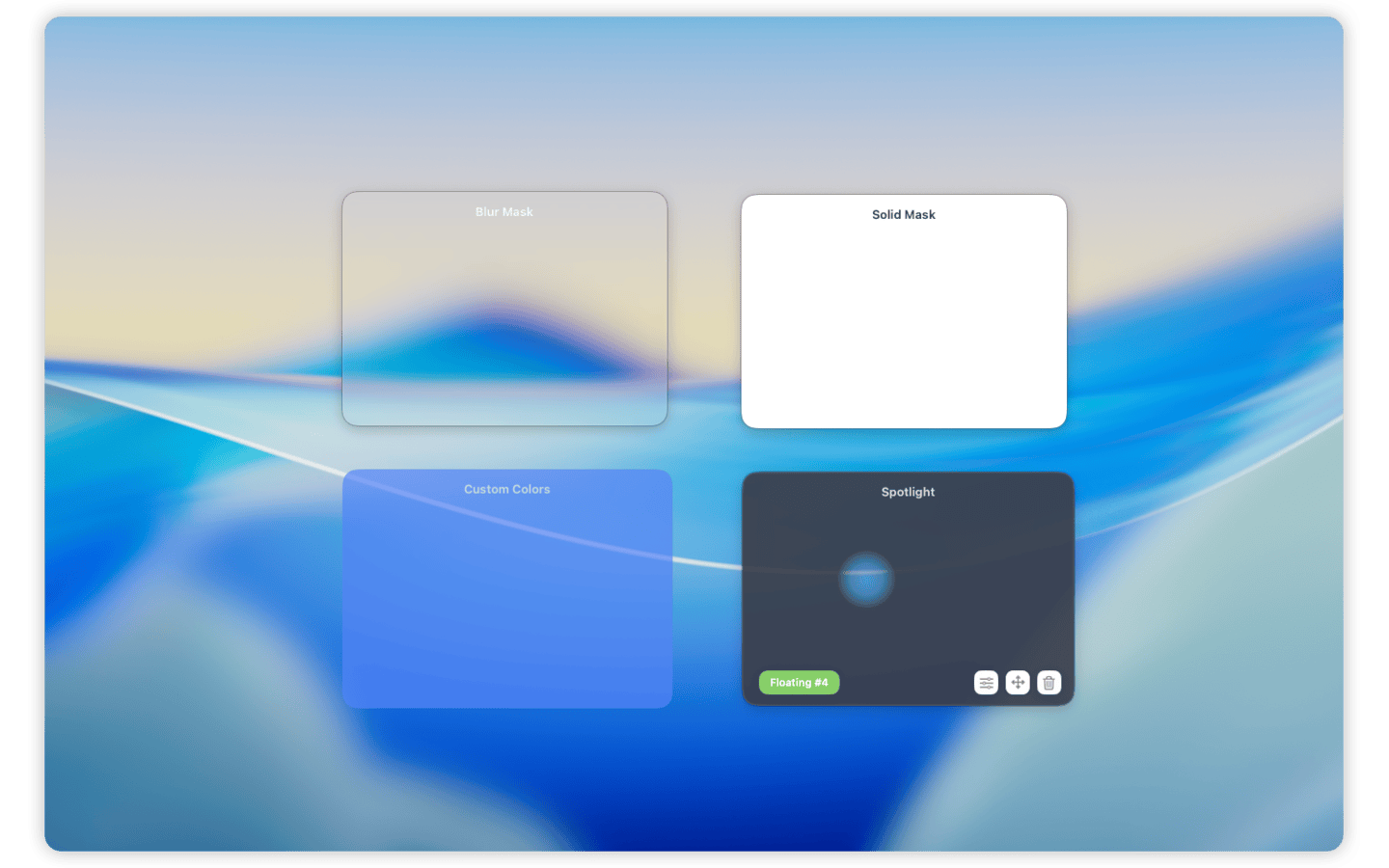
Cover just the sidebar with a solid mask if it is full of unread counts, badges, or lists you keep checking. Use blur if you want to keep the overall layout visible. Use dimming if the sidebar is not bad on its own, just louder than the main workspace.
The important part is to leave the main content area untouched so the app still feels normal.
How to block a chat column or metrics panel
Chat columns and live metrics are some of the easiest distractions to overcheck.
If the number changes often, a solid cover is usually the best choice. If the layout matters more than the exact values, blur works better. If the panel is just competing too hard with the main task, dimming is often enough.
This is especially useful in dashboards, support tools, browser-based admin panels, and apps that mix useful work with a noisy side panel.
Use a screen overlay as a focus mask
A focus mask is just a screen overlay used for attention instead of privacy.
With Cloaky, you can place a mask over any part of your Mac screen and choose how strong it should feel. Use a solid cover when you want an area gone. Use blur when the shape can stay but the details should fade. Use dimming when you still want the area present, just less visually demanding.
This is useful for:
- Chat columns you do not want to watch
- Live metrics, balances, scores, or counters
- Sidebars full of badges, lists, or unread states
- Timers, clocks, and progress panels
- Notification regions and status widgets
- Secondary panels in dashboards, editors, and admin tools
- Any visual cue that keeps pulling attention away from the main task
You are not blocking the app forever. You are quieting one part of the screen for the time you need.
Cover, blur, or dim: which one to use
Different distractions need different treatments.
Use a solid cover when you want the area gone
A solid cover works well for things you keep reading, refreshing, or checking.
If a number, score, chat, or feed is actively pulling your attention, covering it completely is often calmer than trying to ignore it.
Use blur when the layout still matters
Blur is useful when you want the app to keep its shape, but you do not want to read the details.
For example, you may want to know that a sidebar exists without reading every item in it. Or you may want a dashboard to feel complete without watching one specific metric.
Use dimming when the area should stay visible
Dimming is the lightest touch.
It is useful for panels that are not bad, just too bright, too busy, or too visually competitive with the work area. A dimmed panel can stay available while no longer acting like the center of the screen.
How to block a distracting part of your Mac screen with Cloaky
Start with the workspace as you actually use it.
Do not rearrange everything just to create a perfect setup. The point is to keep the useful parts of the screen in place.
If you want the shortest version, the workflow is:
- Leave the app where it is.
- Mask only the distracting region.
- Choose cover, blur, or dim based on how visible it should stay.
- Attach the mask to the window if that area moves around during the day.
1. Choose the exact area
Pick the smallest region that solves the distraction.
If only the unread count is the problem, cover the unread count. If the whole sidebar is noisy, dim or cover the sidebar. If a live metric keeps pulling you back, hide that number and leave the chart visible.
The mask should remove friction, not turn the whole app into a blank wall.
2. Add a floating or app-attached mask
Use a floating mask when the distracting area stays in the same place on your display.
Use an app-attached mask when the distracting area belongs to a specific window and should move with it. This is useful for dashboards, browser apps, admin tools, and workspaces that you may reposition during the day.
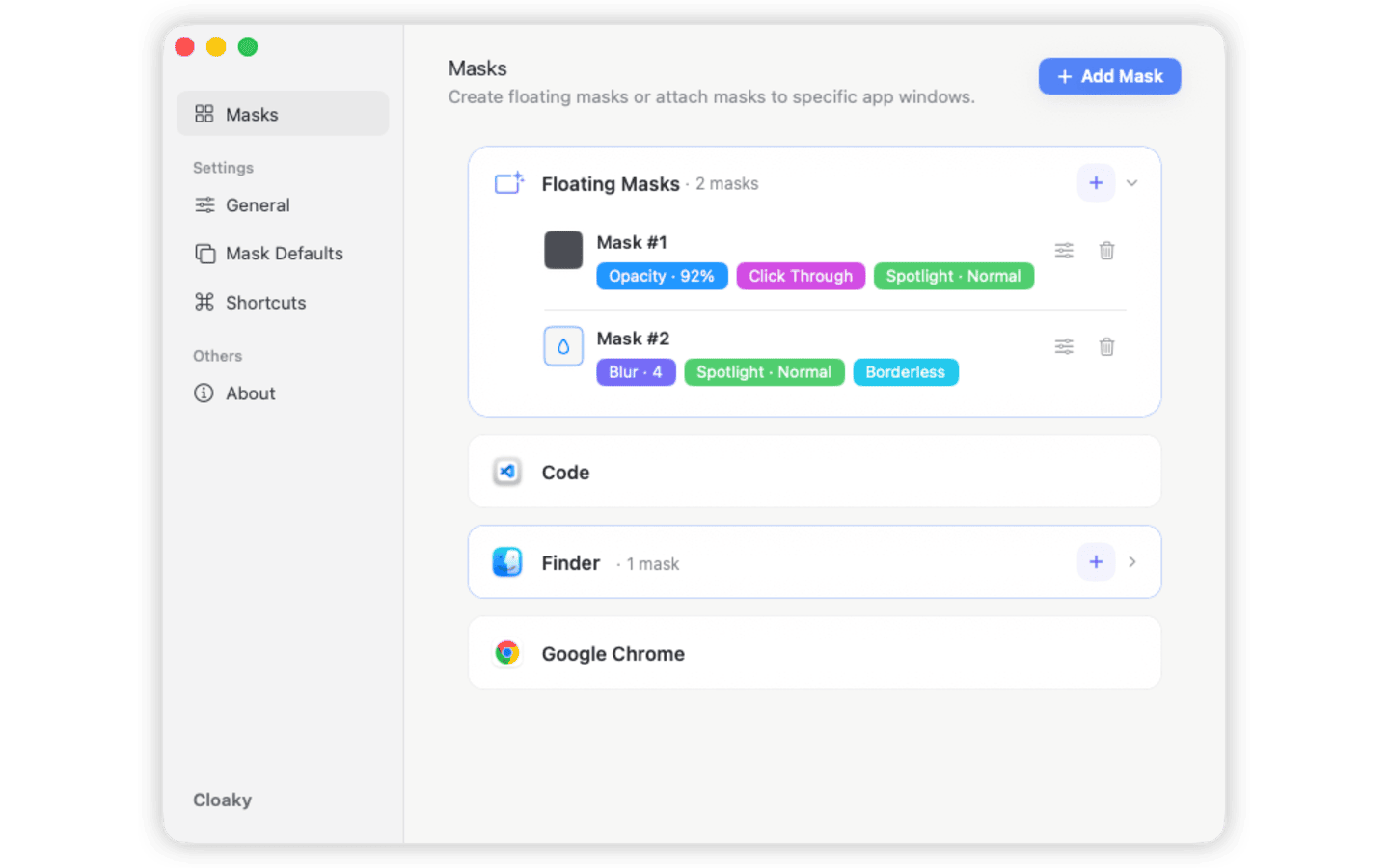
3. Tune opacity and click-through
For focus work, a mask does not always need to be heavy.
Try lower opacity when you still want a hint of the area. Use click-through if the mask covers a place you still need to interact with underneath. Use stronger opacity when the point is to stop seeing the area entirely.
4. Save a repeatable setup
Most recurring distractions are predictable.
Maybe the same dashboard panel is noisy every morning. Maybe the same chat column needs to disappear during deep work. Maybe the same status widget should stay hidden during reviews.
Once a mask feels right, keep that style and reuse it.
Good places to use focus masks
Focus masks are useful anywhere the screen contains both useful work and visual noise.
Dashboards
Dashboards often show more than you need at one time. Hide or dim secondary metrics while keeping the main chart visible.
Chat and communication tools
You may need a conversation open, but not every sidebar, unread count, reaction, or status indicator.
Masking the noisy parts can make a chat app feel less demanding.
Project and task tools
Project apps often show labels, counts, boards, timelines, and side panels. When one part keeps pulling your eyes away, cover that area and keep working in the main view.
Creative and editing apps
Side panels, references, scoreboards, timelines, and tool palettes can become visually loud. Dimming a panel can make the main canvas easier to stay with.
Office displays and shared spaces
Focus masks are not only for solo work. If a screen is visible in an office, meeting room, classroom, or studio, covering irrelevant panels can make the display easier for everyone to read.
Screen sharing and demos
When you are preparing a demo or sharing your full screen, a mask can help keep the audience focused on the part that matters.
Use it to hide private metrics, a temporary note, an admin panel, or a distracting sidebar before you start presenting. If the app is moving around during a live demo, attach the mask to the window so it keeps up.
If your meeting tool captures only a specific app window instead of the full display, test that sharing mode first because some tools may not show the overlay.
A note about privacy
The same masking approach can help with privacy, but focus and privacy are slightly different jobs.
For focus, dimming may be enough. For private information, use a stronger blur or a solid cover.
If you are sharing your screen, remember that full-screen sharing shows the overlay as part of your display. Single-window sharing can behave differently because some tools capture the source app directly. Test the exact sharing mode when sensitive information matters.
FAQ
Can I block only part of my Mac screen?
Yes. Cloaky lets you place a mask over a selected screen area while the rest of your Mac remains visible and usable.
Can I dim part of my screen instead of covering it?
Yes. Dimming is useful when the area is distracting but you do not need to hide it completely.
Can I block a sidebar in a Mac app?
Yes. You can place a mask over a sidebar, chat column, metrics panel, or other region that keeps pulling attention.
Does this change the app underneath?
No. Cloaky draws a screen overlay on top. The app underneath stays unchanged.
Can a mask follow a window?
Yes. Use an app-attached mask when the distracting area belongs to a specific app window.
Make the useful part easier to see
Focus is not always about removing everything. Often it is about making one useful part of the screen easier to stay with.
Cloaky helps you block, blur, dim, or cover distracting parts of your Mac screen without quitting apps, resizing windows, or changing the workspace underneath.
If you want to try the same workflow on your own setup, start with the one panel or number you keep checking most often. That first mask is usually enough to tell whether the workspace feels calmer.
Download Cloaky on the App Store
For related workflows, see how to cover or blur part of your Mac screen and how to hide part of a window on Mac.