

Notifications are one of the easiest ways to leak the wrong thing during a screen share.
A Slack message preview. A calendar alert. A text from someone whose name should not be on screen. A Mail banner. An iPhone notification mirrored onto your Mac at exactly the wrong moment.
The awkward part is that the rest of your setup may already be fine. You are ready to show the document, the dashboard, the deck, or the workflow. You just do not want a random banner or preview to appear while you are talking.
This guide explains how to hide notifications on Mac while screen sharing, what to turn off before a meeting, and when a screen overlay is useful for fixed notification areas that still make your setup look busy.
Quick answer: If your main goal is to stop notifications from appearing at all, start with macOS notification settings and Focus settings. Turn off notifications when sharing the display, turn off previews where needed, and quiet the apps most likely to interrupt you. Use a screen overlay only as a visual backup for fixed areas of the screen, not as the main way to control notification behavior.
Why notifications are such a common screen-sharing problem
Most screen-sharing mistakes do not come from the thing you meant to show. They come from the thing that appeared unexpectedly.
That might be:
- A Slack or Teams preview with a private message
- A Messages notification with a contact name
- A calendar alert for an internal meeting
- A Mail banner with a sensitive subject line
- An iPhone notification mirrored to your Mac
- A reminder, note, or background app alert that has nothing to do with the call
This is why notification control matters so much. Unlike a sidebar or a fixed panel, notifications are unpredictable. If you do not stop them before the meeting, they can show up at the worst possible moment.
If your problem is broader than notifications alone, see how to hide sensitive information while screen sharing on Mac.
The first setting to change on Mac
If you want the cleanest fix, start in macOS Notifications settings.
On current versions of macOS, there is a setting for whether notifications are allowed when you are mirroring or sharing the display. If your goal is to stop banners from appearing during screen sharing, this is the first setting to check.
This is better than trying to cover notifications after they appear, because it reduces the interruption at the source.
Use this setting when:
- You are sharing your full display
- You do not want surprise banners at all
- You want a simple default before calls, demos, and recordings
If this setting is available and fits your workflow, it should do more work for you than any visual workaround.
Turn on a Focus before the call
Focus is the next layer.
If you already use Do Not Disturb or another Focus mode, turn it on before a screen share. This helps reduce notifications across the system and is a good habit even when you have already changed notification settings.
This is especially useful when:
- You are doing a live demo
- You are recording a tutorial
- You are presenting to customers or external teams
- You want fewer interruptions, not just fewer privacy risks
For repeated calls, it is worth having a predictable pre-meeting routine: open the meeting, turn on Focus, and verify your notification settings once.
Turn off previews for the apps that create the most risk
Some notifications are not dangerous because they appear. They are dangerous because of what the preview shows.
If you regularly get messages, emails, or calendar alerts while working, check the preview behavior for apps like:
- Slack
- Messages
- Calendar
- Reminders
- Teams
Even if you still allow some notifications, limiting previews can make accidental exposure much less likely.
This is one of the simplest ways to reduce screen-sharing risk without changing your whole setup.
Do not forget iPhone notifications on Mac
If your Mac is also showing iPhone notifications, that is another source of surprises.
This matters because you may think you have already quieted your Mac apps, then a mirrored phone notification appears anyway.
Before an important screen share, check whether your Mac is receiving iPhone notifications and whether specific apps should be allowed to show on the Mac at all.
This is especially worth checking if you often receive:
- Text messages
- OTP codes
- Delivery alerts
- Personal app notifications
- Calls or call-related banners
App-by-app control is often better than one giant switch
For some people, the best answer is not turning off everything. It is turning off the right things.
For example:
- Keep calendar alerts, but remove previews
- Silence Slack completely during calls
- Turn off Mail banners
- Disable mirrored iPhone notifications for chat apps
- Leave low-risk system notifications alone
This keeps your Mac usable while still making screen sharing safer.
If you present often, a more selective setup is usually easier to live with than rebuilding your notification settings from scratch every time.
What to do if you are recording, not just screen sharing
Recordings have the same problem, but often less forgiveness.
In a live call, someone may miss a banner. In a recording, the banner is captured and can be replayed, paused, or shared later.
That means notification control matters even more when you are:
- Recording tutorials
- Making product walkthroughs
- Capturing demos for customers
- Recording internal training
- Creating launch videos or help docs
If there is any chance the recording will be reused, it is worth taking the safer path and suppressing notifications before you start.
When a screen overlay can still help
Notification settings should be your first tool. A screen overlay is not a better replacement for actually silencing notifications.
But overlays can still help in two situations.
1. A fixed area of the screen still looks too busy
Maybe the top-right corner of your display is visually noisy because of status items, mirrored banners, or a space where alerts tend to appear.
In that case, a mask can cover or dim that fixed area so the screen looks calmer during a recording or presentation.
2. You are hiding nearby context, not just the notification itself
Sometimes the issue is not only the banner. It is the surrounding widgets, menu extras, side panels, or background information that make the screen feel messy.
An overlay can help simplify a fixed region while leaving the rest of the workspace intact.
The key point is this: use system settings to stop notifications, and use a screen overlay to visually simplify fixed screen areas when needed.
If the area that keeps looking messy is a fixed panel rather than a popup banner, how to hide a sidebar on Mac without resizing the window is the closer workflow.
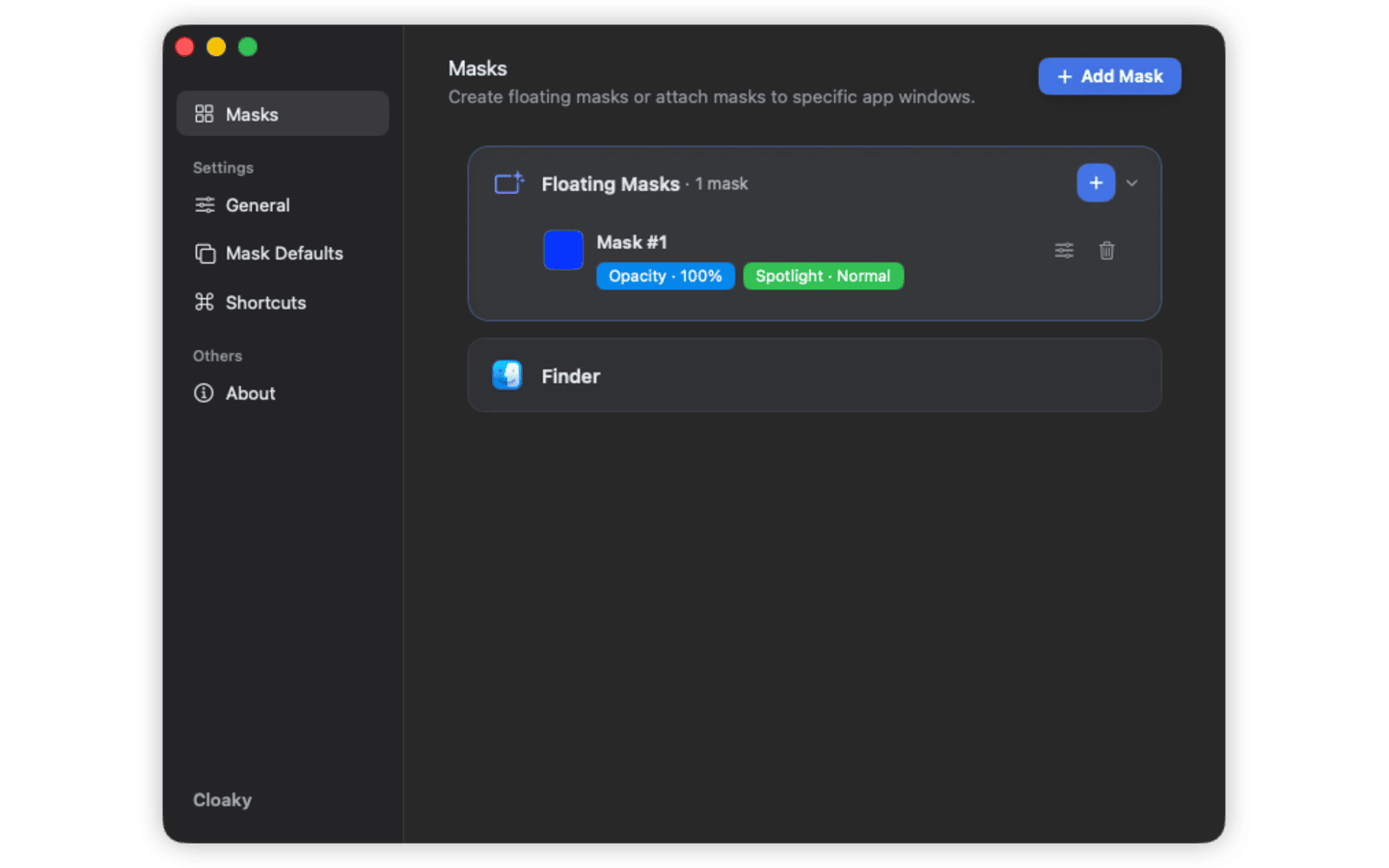
A simple pre-call checklist
Before an important call or recording:
- Turn on Focus or Do Not Disturb
- Check whether notifications are allowed while sharing the display
- Turn off or limit previews for risky apps
- Check whether iPhone notifications are showing on the Mac
- Close apps you do not need
- If your screen still feels visually noisy, cover the fixed area that does not need to be seen
This takes less time than apologizing for a banner that should never have appeared.
If you also need to cover one fixed part of the screen before a demo starts, how to cover or blur part of your Mac screen goes deeper on that setup.
What not to rely on
Some workarounds feel helpful but are weaker than they seem.
Do not rely only on sharing one window
Sharing one app window instead of the full display can reduce risk, but it does not guarantee that all notification-related exposure is gone.
It also does nothing for banners or interface clutter that appears inside the window you are actually sharing.
Do not rely only on hiding the notification area with a mask
If notifications are still allowed, they can still arrive. A mask may hide part of the screen visually, but it is not the same thing as preventing interruptions.
If the issue is privacy or interruption risk, suppress the notification first.
Do not assume your setup is safe because it worked once
Notification behavior can vary depending on the app, the meeting tool, the capture mode, and whether the source is your Mac or your iPhone.
If the stakes are high, test the exact setup before the real meeting.
FAQ
How do I hide notifications on Mac while screen sharing?
Start by changing notification settings for sharing or mirroring the display, then turn on Focus and reduce previews for the apps most likely to interrupt you.
Will Do Not Disturb stop all notifications during a screen share?
It can reduce interruptions significantly, but your safest setup is to combine Focus with the display-sharing notification setting and app-specific notification controls.
Can I stop Slack notifications while screen sharing on Mac?
Yes. You can silence Slack notifications at the app level, reduce previews, or use Focus so Slack does not interrupt a call or recording.
Can I hide iPhone notifications on my Mac too?
Yes. If your Mac is receiving iPhone notifications, review those settings before a screen share so phone alerts do not appear unexpectedly.
Should I use Cloaky to hide notifications?
Use Cloaky as a visual cleanup tool for fixed areas of the screen. If you want notifications not to appear at all, start with macOS notification and Focus settings first.
Quiet the screen before it interrupts you
The best screen-sharing setup is not the one that recovers gracefully after a notification. It is the one where the notification never appears in the first place.
Cloaky can help simplify fixed areas of the screen, but your first move should be suppressing banners, reducing previews, and turning on the right Focus before the call starts.
For related workflows, see how to hide sensitive information while screen sharing on Mac, how to cover or blur part of your Mac screen, and how to hide a sidebar on Mac without resizing the window.