

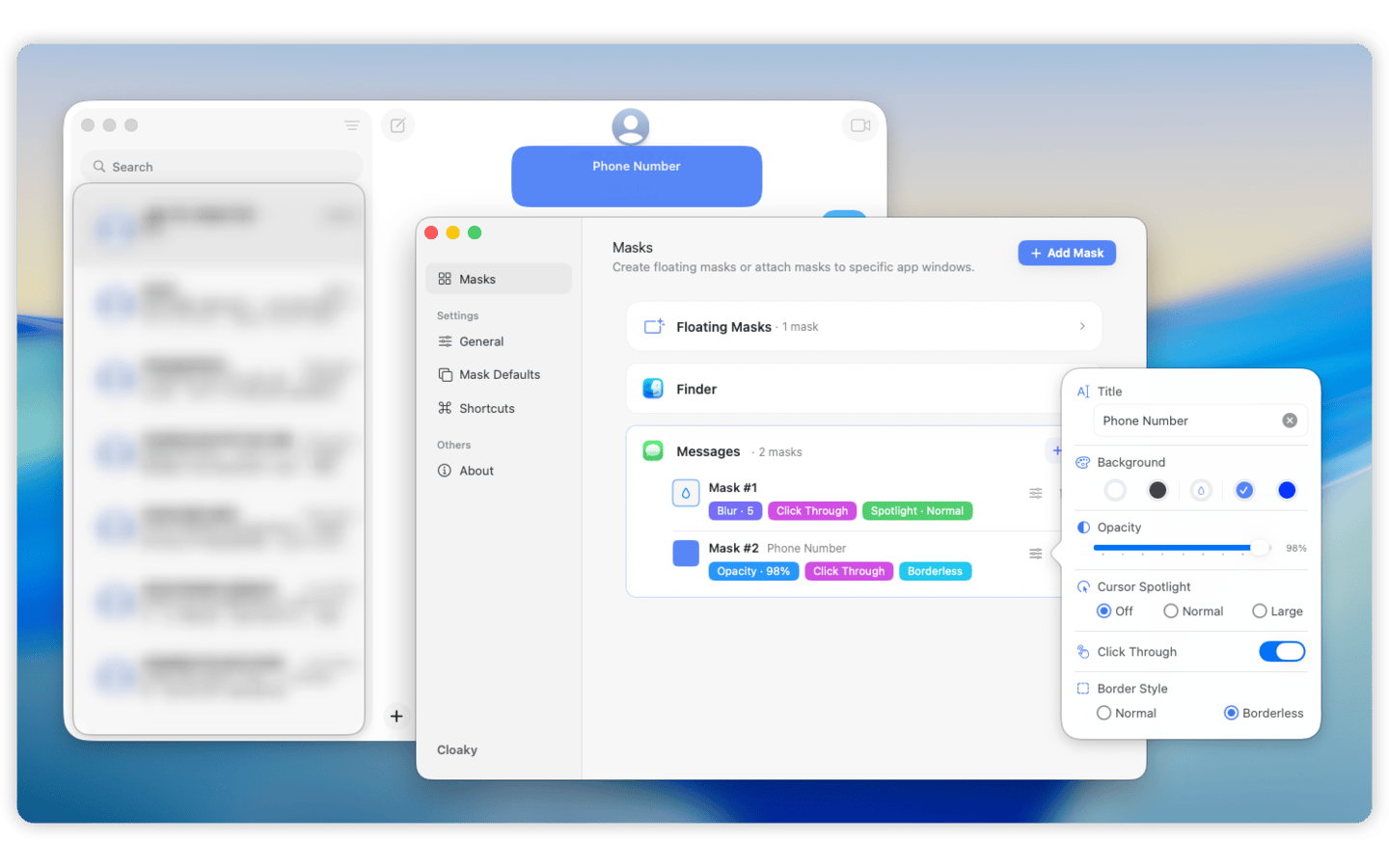
Some Mac sidebars are useful in theory and exhausting in practice.
A chat list you keep checking. A folder tree full of names. An admin panel with internal controls. A dashboard sidebar with counts, badges, balances, or filters that keep pulling your eyes away from the main work.
The rest of the app is fine. You do not want to close it, move it off screen, or resize the whole window just to make one column disappear.
This guide explains how to hide a sidebar on Mac without resizing the window, when app controls are enough, and when a screen overlay is the cleaner way to keep the main content visible while the sidebar stays out of the way.
Quick answer: If the app already has a good built-in hide-sidebar control, use it. If it does not, or if hiding the sidebar breaks the layout you want to keep, place a screen overlay over just the sidebar. Use a solid cover if you want it gone, blur if the layout should still be recognizable, and dimming if the sidebar is only too visually loud.
When people want to hide a sidebar
This comes up more often than it sounds.
- A browser app has the page you need, plus a noisy left rail
- A support tool has the ticket in the center and customer details on the side
- A dashboard has the useful chart and a sidebar full of live numbers
- A design or writing tool has a panel you do not want to watch while working
- A demo screen has internal navigation, filters, or labels that should not be visible
If you searched for hide sidebar Mac, cover sidebar Mac, or blur sidebar Mac, the real problem is usually the same: you want the main content area to stay put while one side panel stops competing for attention.
Why resizing the window is usually the wrong fix
The first workaround most people try is resizing the app until the sidebar collapses or disappears.
Sometimes it works. Often it makes everything else worse.
When you resize the window:
- Content wraps differently
- Charts or canvases shrink
- Toolbars move
- Panels collapse in ways you did not want
- The app stops looking like the layout you were actually using
This is especially annoying during demos, reviews, recordings, and any workflow where the app is already arranged the way you want.
The problem is not the whole window. The problem is the sidebar.
Built-in sidebar controls are not always enough
Some apps give you a clean way to hide a sidebar. If that works, great.
But built-in controls are often incomplete:
- The app hides the wrong panel
- The layout changes too much
- The sidebar comes back after navigation
- You need it hidden only temporarily
- You want the structure visible, but not the details
- The app has no sidebar toggle at all
That is where an overlay helps. Instead of negotiating with the app, you add a visual layer above the exact part you want to quiet down.
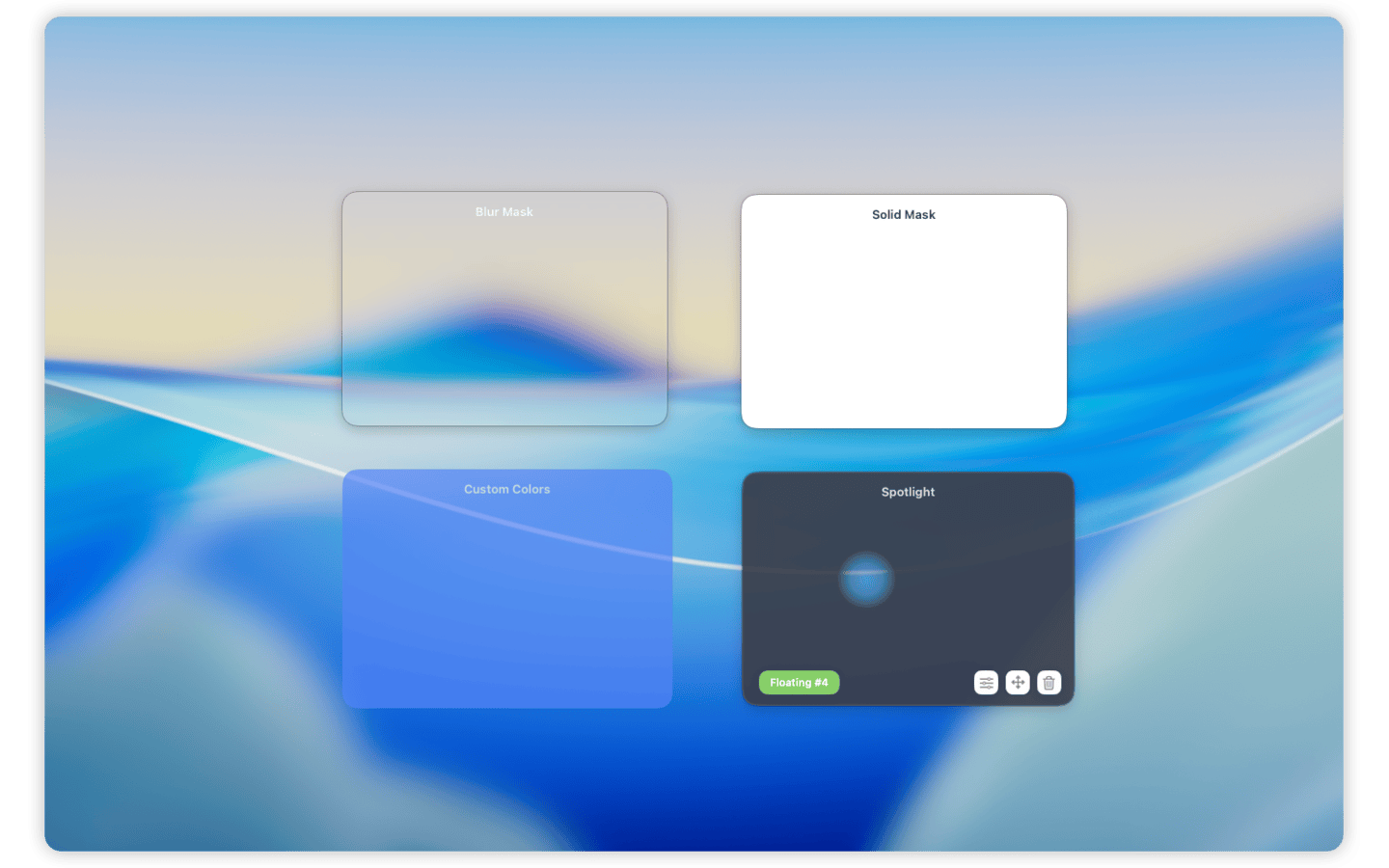
Cover, blur, or dim the sidebar
Different sidebars call for different treatments.
Use a solid cover when the sidebar is pure noise
If the sidebar is full of unread counts, private names, balances, or live activity you keep checking, a solid cover is usually best.
This makes sense when the sidebar adds nothing to the task in front of you and you simply want it gone for a while.
Use blur when the layout still matters
Blur is useful when you want to preserve the shape of the app.
Maybe the sidebar helps you stay oriented, but the details inside it are distracting or sensitive. A blur mask lets you keep the layout without reading every item.
Use dimming when the sidebar is only too loud
Sometimes the sidebar is not the enemy. It is just visually stronger than the work area.
Dimming can lower the pull of the panel without fully hiding it. This works well for lists, folder trees, status columns, and reference panels you may still glance at occasionally.
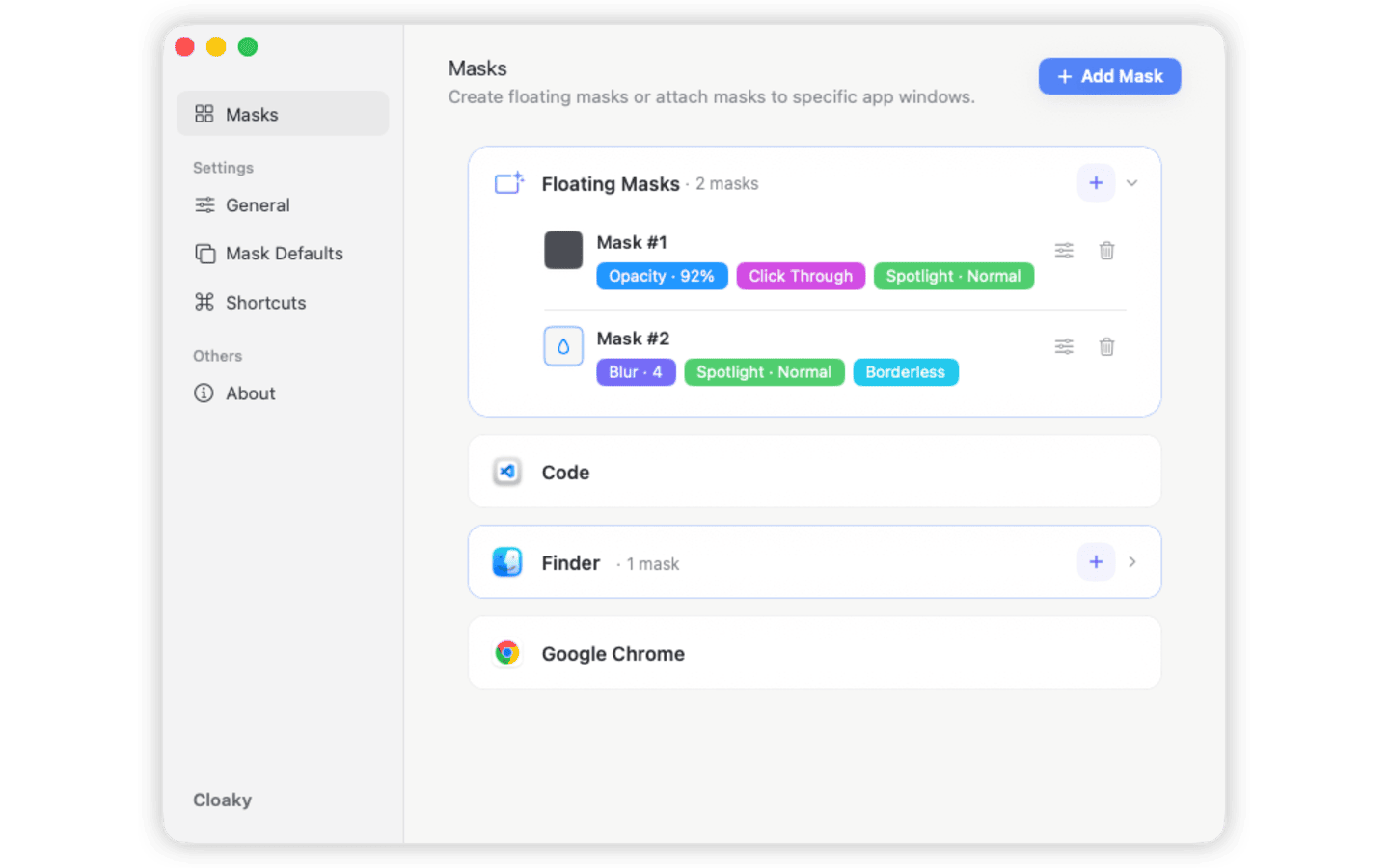
How to hide a sidebar on Mac with Cloaky
The simplest version is:
- Keep the app window where it already is
- Cover only the sidebar region
- Choose cover, blur, or dim based on how visible it should stay
- Attach the mask to the window if the app moves around
1. Keep the useful layout
Start with the real workspace, not a temporary one.
Do not resize the window just to make the setup possible. The point is to preserve the useful center area while removing pressure from the side panel.
2. Mask only the sidebar
Cover the smallest area that solves the problem.
If the whole sidebar is noisy, hide the whole sidebar. If only one strip inside it is the issue, mask just that strip. Smaller masks usually feel cleaner and less intrusive.
3. Pick the right visual treatment
Use:
- Cover for private details, counts, or things you keep checking
- Blur for structure without readable detail
- Dim for sidebars that are useful but visually too demanding
4. Decide whether the mask should follow the window
If the app stays in one place, a floating mask may be enough.
If the sidebar belongs to a specific app window and you move that window during the day, use an app-attached mask so the hidden area stays aligned.
Good sidebar use cases
This works especially well for:
Browser-based tools
Internal tools, CMS screens, dashboards, and admin apps often put navigation and private context in the sidebar while the main page sits in the center.
Masking the sidebar lets you keep the page visible without exposing the rest of the interface.
Chat and communication apps
Sometimes you need one conversation open, not the entire message list, unread stack, and workspace navigation.
Hiding the sidebar can make the app much less demanding during deep work.
Support, ops, and sales tools
These tools often mix the main workflow with names, emails, account details, labels, or activity feeds in a side panel.
If the center content is useful but the side information should stay out of sight, a sidebar mask is a clean fit.
Creative and writing apps
Editors, design tools, and writing apps often use panels for layers, pages, comments, assets, or references.
When one of those panels keeps pulling focus, dimming or blurring it can make the main canvas easier to stay with.
Hiding a sidebar for demos and screen sharing
This is one of the most practical use cases.
If you are showing an app to someone else, the sidebar often contains exactly the information you do not want to explain:
- Internal labels
- Customer names
- Draft projects
- Unread counts
- Private metrics
- Navigation that makes the demo look messy
Masking that panel before you start can make the screen feel cleaner and easier to follow.
One important detail: if your meeting tool shares the full display, the overlay appears as part of what people see. If it captures only a single app window, some tools may capture the source window directly and not include overlays. Test the exact sharing mode when it matters.
Why this topic is really about focus, not just privacy
A sidebar does not have to contain sensitive information to be a problem.
Sometimes it is just where your eyes keep going.
A panel full of badges, filters, threads, notifications, or counters can quietly fragment your attention. The app is still useful. The sidebar is just louder than the work.
That is why hiding a sidebar is often a focus workflow as much as a privacy workflow.
FAQ
Can I hide a sidebar on Mac without resizing the app?
Yes. If the app supports it cleanly, use the built-in control. If not, you can cover, blur, or dim the sidebar with a screen overlay while keeping the rest of the window unchanged.
Can I blur a sidebar instead of fully hiding it?
Yes. Blur is useful when you want to preserve the layout but remove readable detail.
Can I hide only part of a sidebar?
Yes. You can mask the whole panel or only the specific section that is distracting or private.
Will the mask move with the app window?
Yes. Use an app-attached mask when the sidebar belongs to a specific app window.
Will this work during screen sharing?
It works reliably with full-screen sharing. Single-window sharing can behave differently because some meeting tools capture the source app directly instead of the full display.
Hide the sidebar, keep the app
If the center of the window is useful and the sidebar is the problem, you should not have to redesign the whole workspace just to make one panel disappear.
Cloaky gives you a practical way to hide, cover, blur, or dim a sidebar on Mac without resizing the window or changing the app underneath.
For related workflows, see how to hide part of a window on Mac, how to cover or blur part of your Mac screen, and how to block distracting parts of your Mac screen.